Import Defender IOCs
Creates CSV files of the domains and IPs for the remote tools you have not excluded. Import them into Defender indicators to block network connections to those tools on Windows and macOS devices. Tools that only run on macOS, such as Addigy, are blocked by these indicators alone, because the WDAC policy is Windows-only.
1. Download
Exclude trusted tools. Enable Include IOC exports. Download every CSV.
2. Enable protection
- Settings → Endpoints → Advanced features → Custom network indicators: On.
- Network protection: block mode.
- Defender Antivirus: active mode, cloud protection and behavior monitoring enabled.
3. Import
Defender → Settings → Endpoints → Indicators → URLs/Domains.
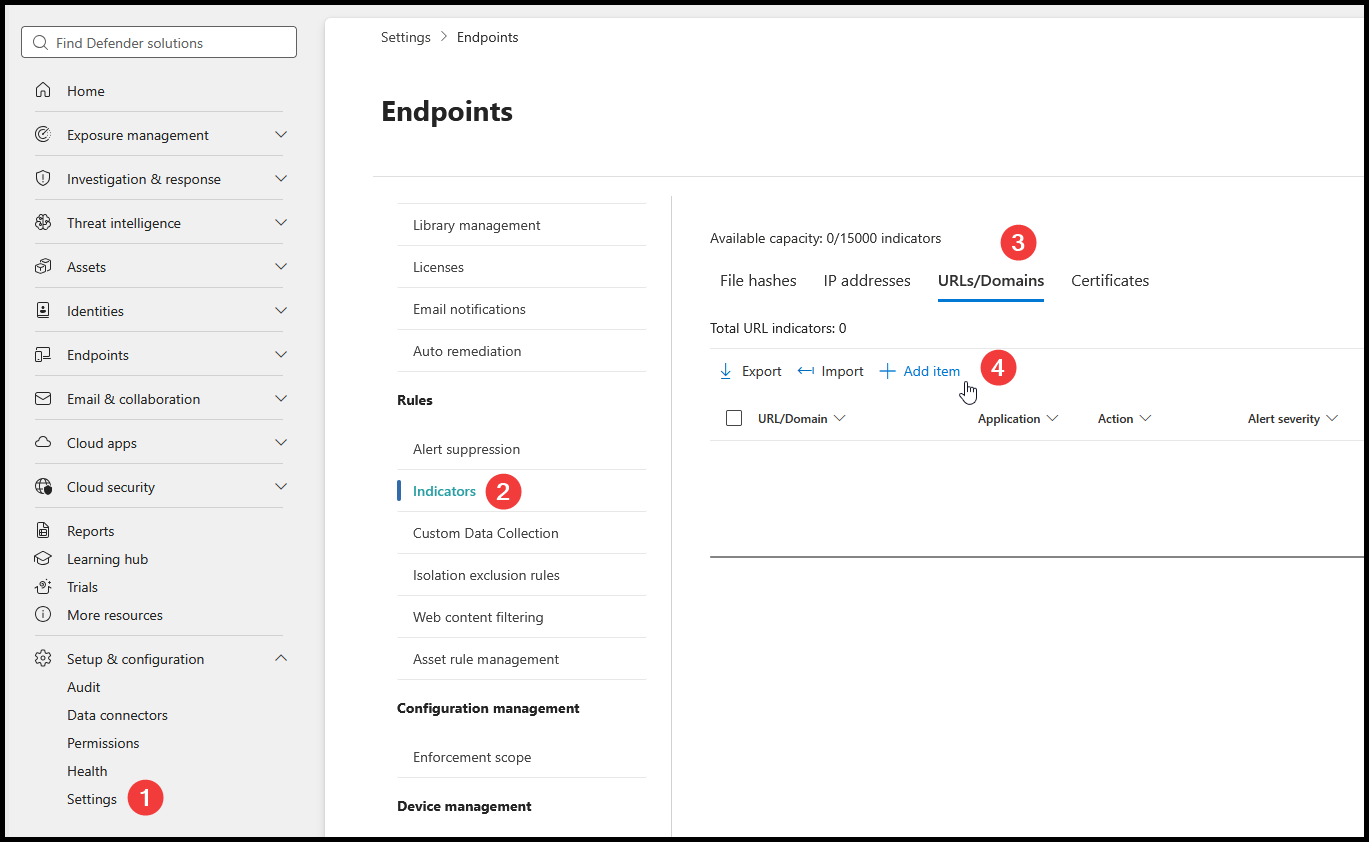
Import → Choose file. Select a CSV, then Import.
Repeat for every batch, then Done. Limit: 500 indicators per CSV.
4. Verify
- Resolve import errors before continuing.
- Check imported rows under URLs/Domains and IP addresses.
- Confirm device scope and blocking action.
- Test blocked and excluded tools on pilot devices.
Network blocks usually take around 30 mins to apply.
Expand device scope after testing.